Enabling SSO in Luzmo with Entra
This guide will walk you through the steps to enable Single Sign-On (SSO) in Luzmo using Microsoft Entra ID (formerly Azure Active Directory) as your Identity Provider (IdP).
✅ This setup requires access to Luzmo's SSO Settings (available to Organization Owner).
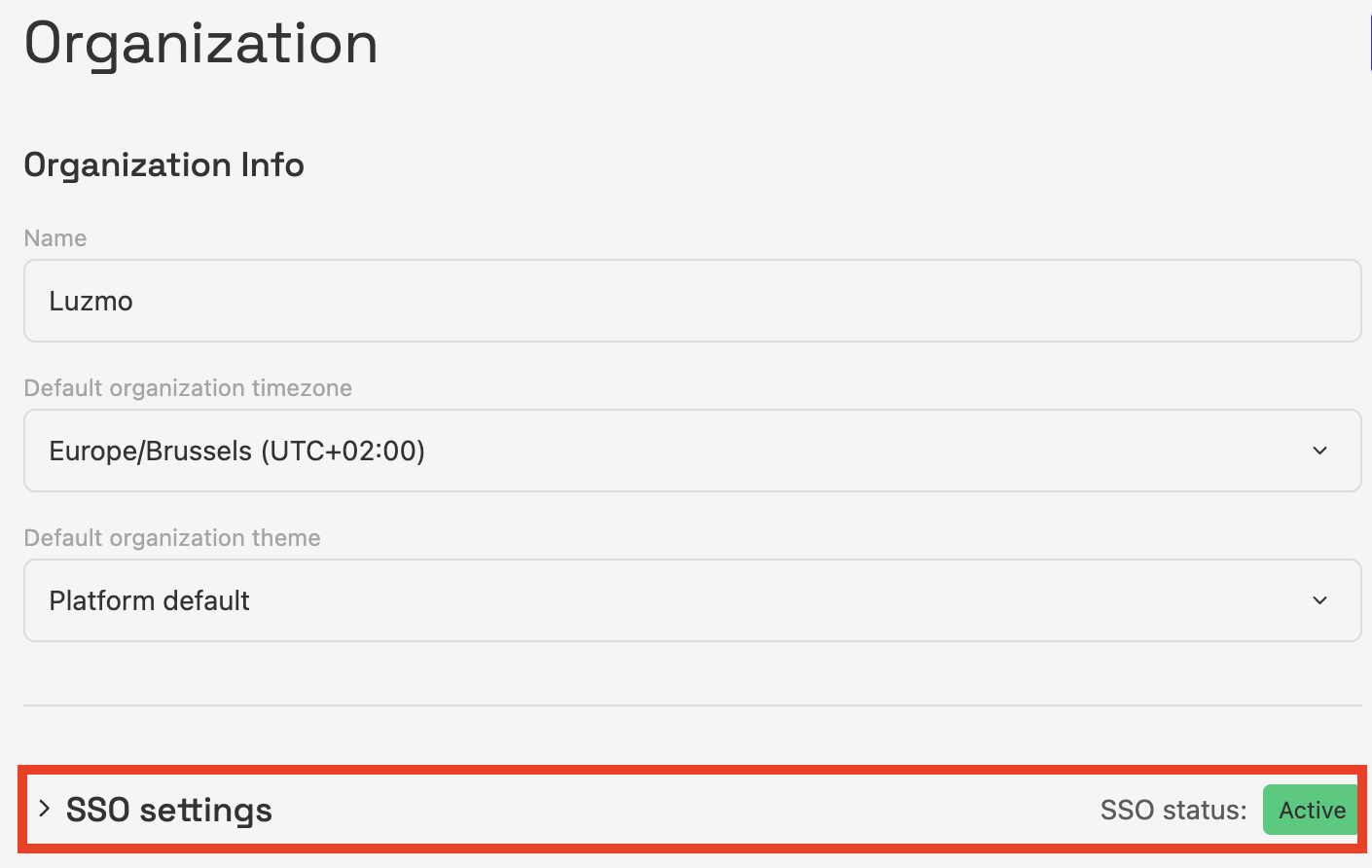
1. Access SSO Settings in Luzmo
- Go to Luzmo App
- Navigate to:
Settings → Organization - Locate the SSO Settings section (collapsed by default).
- Click Expand to open the configuration panel.
2. Create a New Application in Microsoft Entra ID
In the Azure Portal, follow these steps:
➤ Register a new application
- Go to Microsoft Entra ID → App registrations → New registration
- Name:
Luzmo - Supported account types: Select what fits your organization (usually “Accounts in this organizational directory only”).
- Redirect URI: Select Web and paste the Callback URL from Luzmo’s SSO Settings.
- Click Register.
3. Configure Authentication & Claims
After the app is created:
- Go to Authentication → verify the Redirect URI is correct.
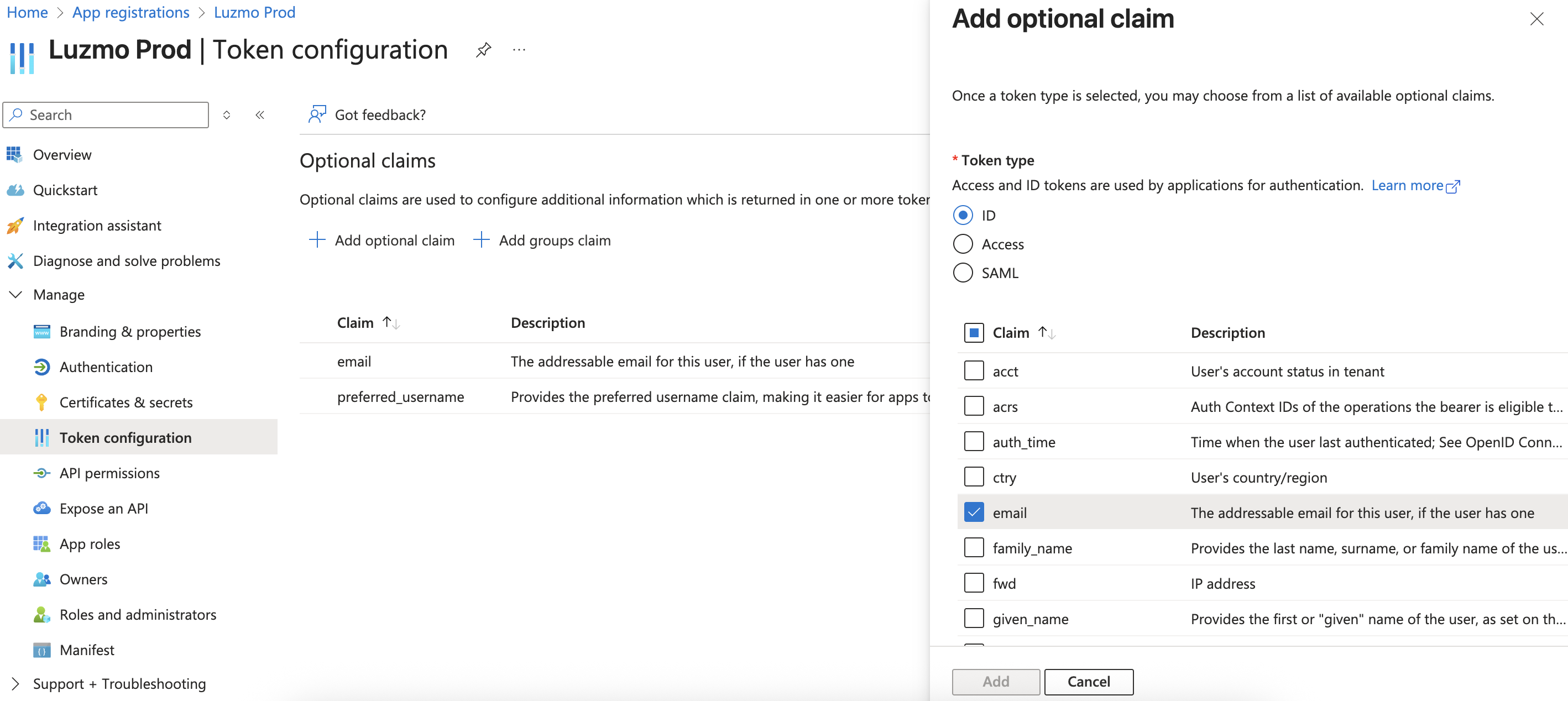
- Go to Token configuration → click + Add optional claim → select ID token → choose email → Save.
- This ensures Luzmo receives the correct user email.
- (Optional but recommended) Ensure the app has the default API permissions:
openid,profile,email.4. Collect Application Details
In the Azure Portal, copy these values from your registered application:
| Field | Where to find it in Azure |
|---|---|
| Client ID | Application (client) ID |
| Client Secret | Create under Certificates & secrets |
| Issuer URL | Found under Endpoints → OpenID Connect metadata document (base URL) |
5. Complete the SSO Configuration in Luzmo
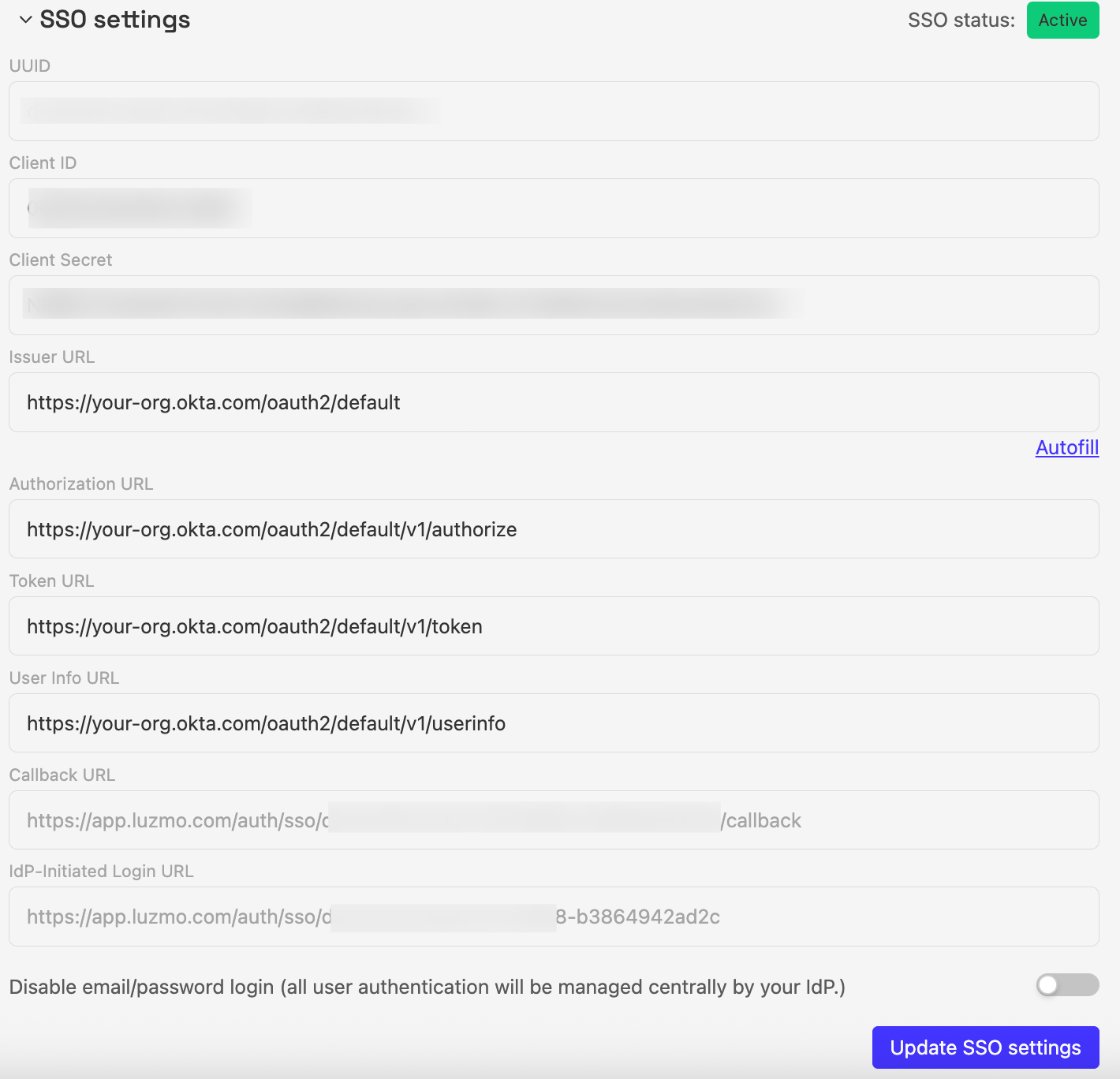
Back in Luzmo, under SSO Settings, enter the following:
- Client ID → from Azure
- Client Secret → from Azure
- Issuer URL → from Azure
Once you enter the Issuer URL:
- Click Autofill to automatically populate:
- Authorization URL
- Token URL
- User Info URL
Click Update SSO Settings to save.
6. Add Users to Luzmo
For users to authenticate via SSO, their account must exist in Luzmo.
You can create accounts:
- Via the Luzmo UI:
- Go to
Settings → Organization - Scroll down and click Add Member
- Go to
- Via API:
- Use the
createUserendpoint
- Use the
7. User Login via SSO
Once SSO is configured:
- Users go to https://app.luzmo.com/home/login
- Click Sign in with SSO
- Enter their email
- Luzmo redirects them to Microsoft Entra ID for authentication
After successful login, they are redirected back and logged into Luzmo.
💬 Questions or Support?
If you need assistance during setup, reach out to our team at cs@luzmo.com.!