Timezone
Luzmo supports timezones in a flexible and powerful way. Four elements come to play:
- The data type in Luzmo: The data type set on the column in Luzmo, i.e. date or datetime.
- The display timezone: You can control the timezone in which the data should display in the dashboard, the embedding token, or even allow the user to change it!
- The source data type: The data type of the column in your data source, i.e. date, timestamp with timezone, timestamp without timezone, etc.
- The source timezone: This is usually determined by the database, or if not specified, Luzmo will interpret data as being in the UTC timezone.
Before diving into the how and what, let's see why this may be useful in case you have data about dates including hours. In other words, an order can be placed at the 24th of February 11.45 pm in one timezone, which is actually the 25th of February 00.45 am already in another timezone. By using timezones, you are sure to always have a correct dashboard with data adapted to the chosen timezone.
Now, let’s dive into more detail on what these exactly are, how you can set them up, and how they interact with each other.
1. The data type in Luzmo - date vs datetime
You can set your columns' data type to date or datetime. Please refer to this article for more explanation on the Luzmo data types.
- date data type: You can mark a column as such if the data in it only represents a date, and the time part of it (if it is present) should never be taken into account. All your values will be interpreted as having no hours and so on. The data will never shift in time.
- datetime data type: This can combine both a date and a time. It stores chronological information such as month, day, year, hours, minutes, and seconds. Your data can shift in time.
2. The display timezone
There are three main places where you can specify the display timezone, in your profile details, in the dashboard editor or when embedding.
Specifying your display timezone in the profile details
You can easily adapt the timezone for your own profile (user level) or for your whole organization (if you are an organization owner in Luzmo) as shown below.
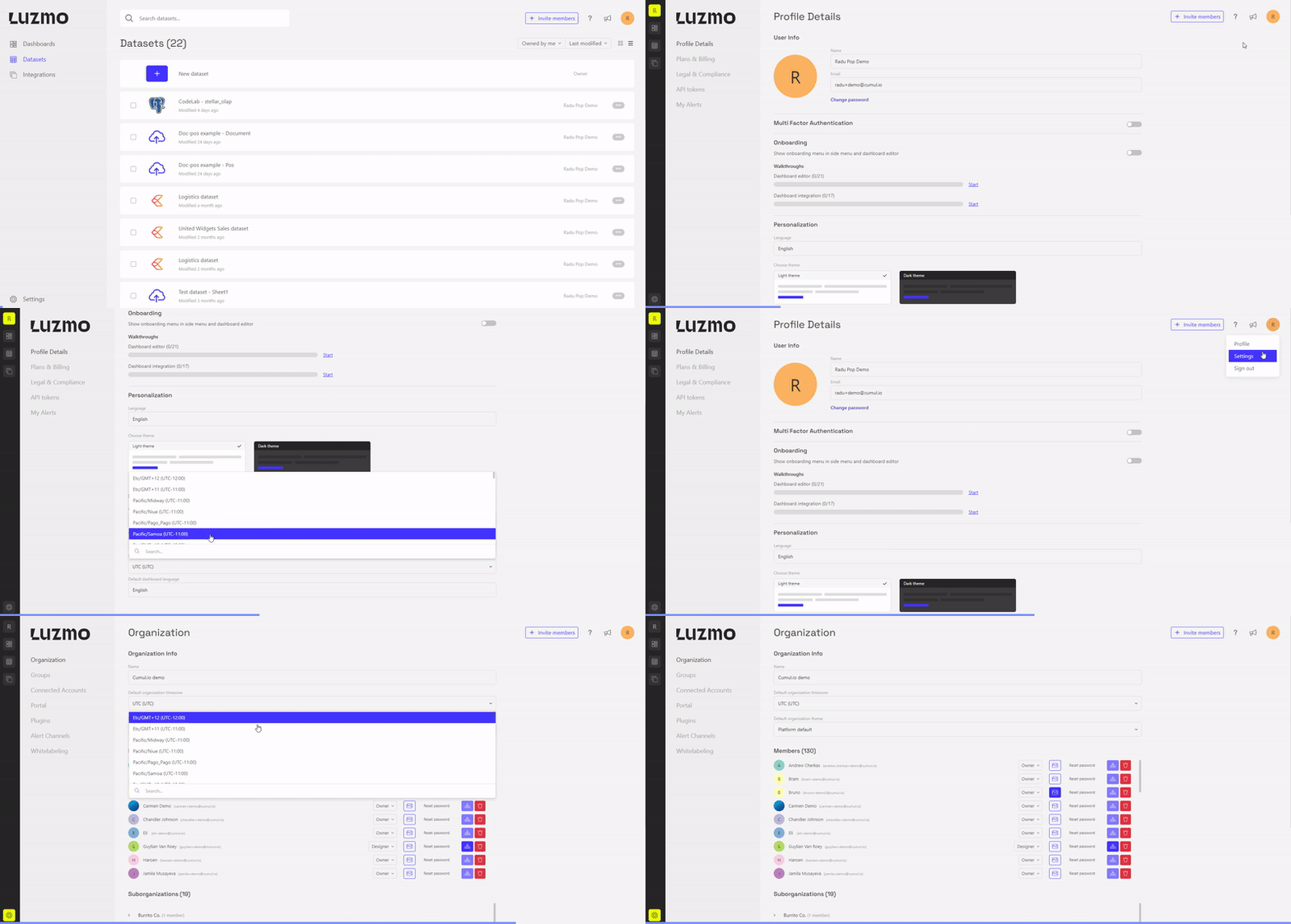
This will influence the default display timezone for the databoard (the dataset overview) and for any newly created dashboard.
Specifying the display timezone in the dashboard editor
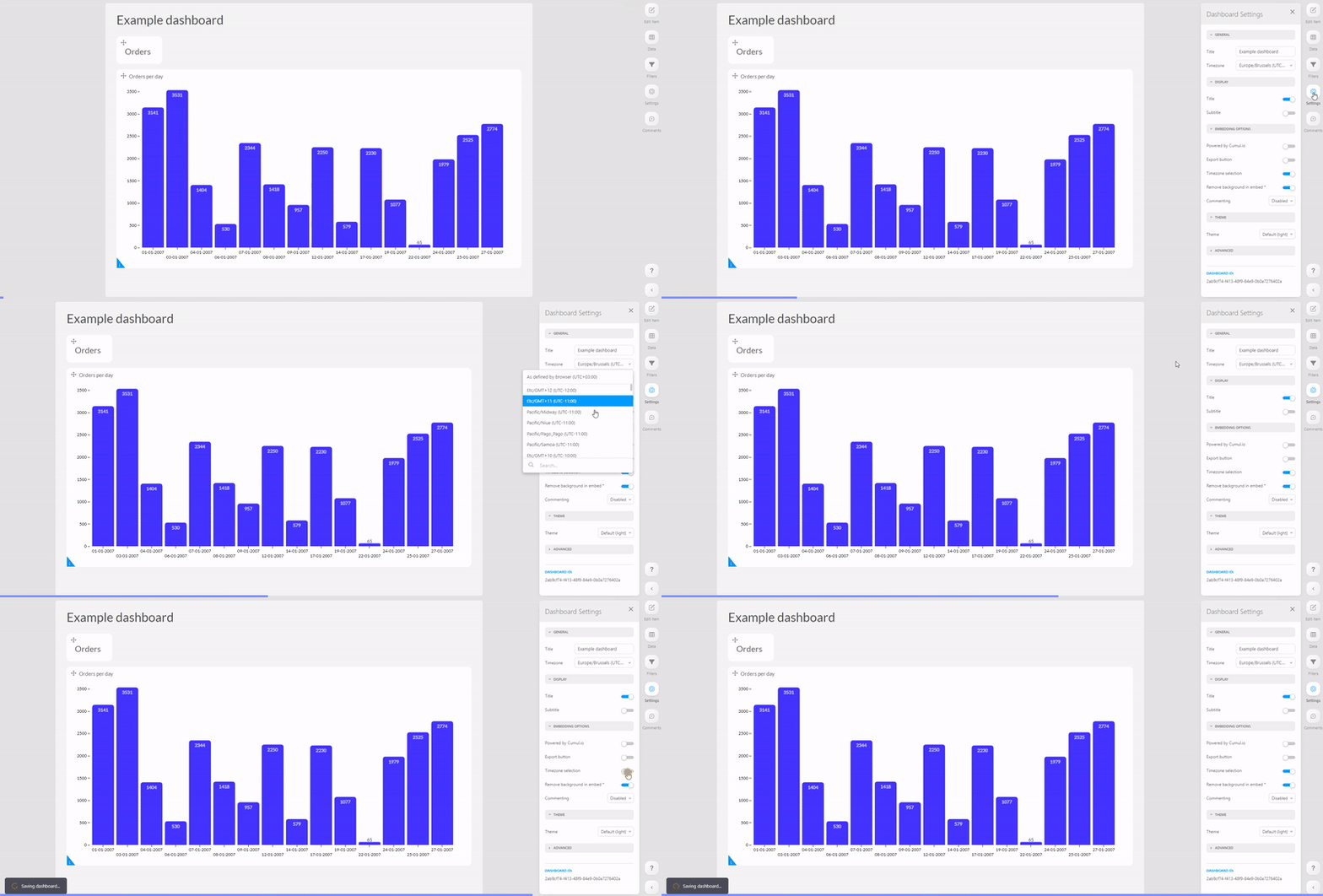
You can choose either of the two modes:
- Browser: The dashboard will display the data based on the timezone of the browser, determined by where the user is at that moment
- Fixed: The dashboard will display the data based on the timezone you choose from the list.
By toggling on the option ‘Timezone selection’ underneath the Export button, you give the user the possibility to choose another timezone in an embedded dashboards and dashboards opened via the share link. This will appear in the bar at the bottom, as you can see in the dynamic example above.
Specifying the display timezone when embedding
When embedding, you can:
- specify the timezone on the embedding (frontend) component via the timezoneId property
- specify the users' specific timezone in the embed token, via the timezone_id property, that you generate to embed the dashboard with
This timezone id needs to be a valid id that is available in the IANA timezone database, for example: Europe/Brussels or America/New_York.
This way you can have different users looking at the dashboard in different display timezones, while still maintaining control over which timezone that is. This is in contrast to the "browser" mode that you can specify via the dashboard editor where the timezone will depend on the location of the user at that moment.
An example of how to specify the timezoneId on the embedding component:
<luzmo-dashboard
   authKey="<your embed key>"
   authToken="<your embed token>"
   dashboardId="<your dashboard id>"
  language="en"
  timezoneId="America/New_York">
</luzmo-dashboard>
An example of an embed request including the specification of a timezone_id:
const Luzmo = require('@luzmo/nodejs-sdk');
var client = new Luzmo({
    api_key: '< Your API key >',
    api_token: '< Your API token >'
  });

let promise = client.create('authorization', {
  type: 'embed',
  username: '12345678',
  suborganization: 'Burrito Co.',
  name: 'Embed user',
  email: 'embed_user@example.com',
    access: {
      collections: [
        {
          id: '<collection ID>,'
          inheritRights: 'use'
        }
      ]
    },
  role: 'viewer',
	timezone_id: 'Europe/Brussels'
});

promise.then(function(result){
  // return result.id and result.token to the client
})
3 & 4. The source data type and source timezone
For data uploaded to Luzmo (via local upload via our user interface or via our API), the data is always considered to be UTC.
When connecting your data via one of our database connectors, the type of your data in your original database plays a role in the timezone feature. We call this the source timezone, as it is fully controlled by the data source. It determines the way Luzmo will interpret the data. Combined with the display timezone (which you can set via the dashboard or embed token as explained above), the data will display in a shifted or non-shifted manner.
- If your database column has the type "date": your data has no timestamps included - no timezone shifts will happen. Set the datatype in Luzmo to date. See example 1 below.
- If your database column has the type "timestamp with timezone": the data will be interpreted based on the timezone specified in the timestamp and will be shifted in time based on the display timezone you set up. Make sure the datatype in Luzmo is datetime. See example 2, below.
Make sure that you set the subtype in Luzmo to "date", if you are only storing date-level information, and do not want the timestamps to be timezone-shifted depending on the dashboard timezone setting though! See example 3 below. - If your database column has the type "timestamp without timezone": in this case, the timestamp is not a unique moment in time. As we don't know in which timezone your app is storing the timestamps, we will interpret your datetime values as UTC values. If that is not desired, you should store timezone information in your column and change its type to "timestamp with timezone". See example 3, below.
Let's consider three examples to make this clear:
Example 1 The column in the dataset includes values like "2023-04-07". In this case, this value unambiguously refers to the 7th of April, regardless of the timezone where the user is located, dashboard setting, ... This value should never be interpreted as the 6th of April at 22:00 for example. The column should be set to date.
Example 2 The column in the dataset includes values like "2023-04-07 04:00:00 +02:00". In this case, this value represents an exact moment in time (04 AM on the 7th of April in the UTC+2 timezone). This row should thus be counted on the 7th of April if we aggregate data in Belgium (UTC+1), but should count towards the 6th of April if we aggregate data in the USA, NY (UTC-5). The data will shift depending on the display timezone you specify. The column should be set to datetime.
Example 3
The column in the dataset includes values like "2023-04-07 02:00:00". In this case, you could want it to behave as a date like in example 1 or as a datetime like in example 2. Luzmo will try to set the type based on which values we encounter for local upload, or what the original data type is ("date", "datetime") for databases. You can change the datatype in Luzmo to date or datetime.
rWhen you set it to date, the hours and so on will be ignored and the data will not shift in time.
When you set it to datetime, the data will be interpreted as UTC by Luzmo (as the exact timezone is not specified). When setting your display timezone to e.g. UTC-6 the above value will shift and become 2023-04-06 20:00:00. You can make sure no shift occurs on your data, by setting the display timezone of your dashboards to UTC as well.
Note: When connecting your data via a Plugin, data should always be sent in RFC 3339 format, like 2023-05-05T12:23:45.000Z. For Pushdown-enabled Plugins you will see that a timezone_id is present in the request for data sent by Luzmo to the /query endpoint. You are expected to sent back data values in UTC at all times, the data should be aggregated based on the timezone_id.
Different timezones data in one column
You may have a column with data in different timezones, e.g. because you are saving the data in the timezone in which the event occurred.
In this case, you may want them to shift to a specific display timezone. You need to make sure to cast the field as a "timestamp with timezone" in your database. It is a database design best practice to use the timestamp with timezone. If this is not yet the case, you can make a view that takes your user's timezone + your "timestamp without timezone" column and turns it into a "timestamp with timezone". See example 1, below.
You may also not want them to shift: in that case, you need to make sure the column is a "timestamp without timezone" in your database. That way, the data will be interpreted as UTC by Luzmo. You can then set the dashboard display timezone to UTC as well, at which point no time shifts will occur on your data. See example 2, below.
Let's look at the next two examples to make this clear:
Example 1 The column in the dataset includes values like "2023-04-07 02:00:00 +02:00 and ""2023-04-07 02:00:00 +04:00". As you can see, the column has data in different timezones. If you want them to shift to a specific display timezone, you need to make sure the field to a "timestamp with timezone" in your database. If this is not yet the case you can make a view that takes your user's timezone + your "timestamp without timezone" column and turns it into a "timestamp with timezone".
Example 2 The column in the dataset includes values like in example four, "2023-04-07 02:00:00 +02:00 and ""2023-04-07 02:00:00 +04:00". As you can see, the column has data in different timezones. If you do not want them to shift in time, you need to make sure the field to a "timestamp without timezone" in your database. At that point, the column will be interpreted as in the UTC timezone by Luzmo. You can make sure no shift occurs on your data, by setting the display timezone of your dashboards to UTC as well.
No matter which behaviour you would like to obtain, you can do so by combining the four elements (Luzmo data type, display timezone, source data type and source timezone) in the correct way for your scenario.